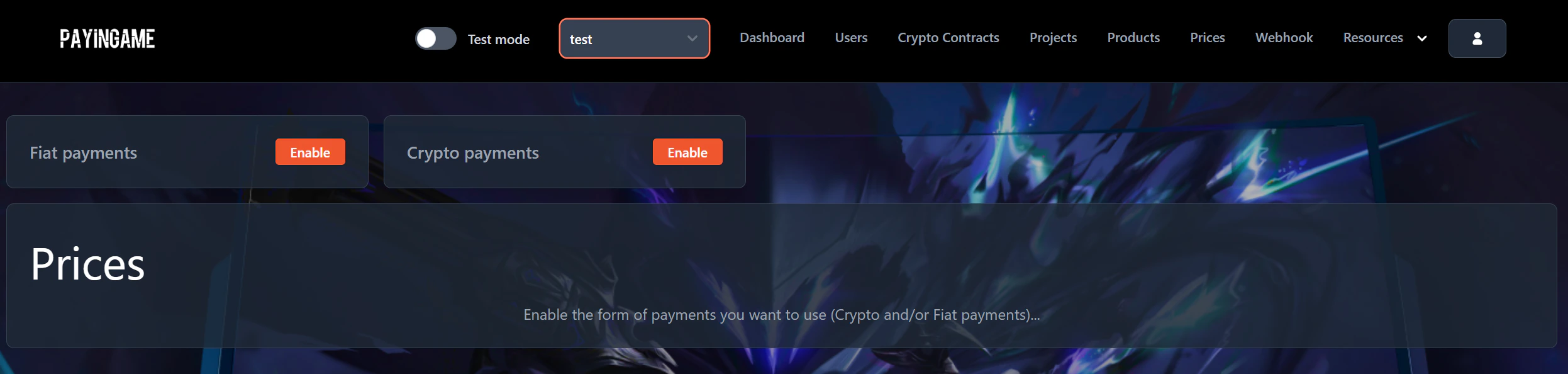
- Fiat payments: This enables you to sell items through credit card or any other form of fiat payment. This can only be used for ingame items (so not for NFT’s). For more information click Here
- Crypto payments: This enables you to sell items with crypto. For more information click Here
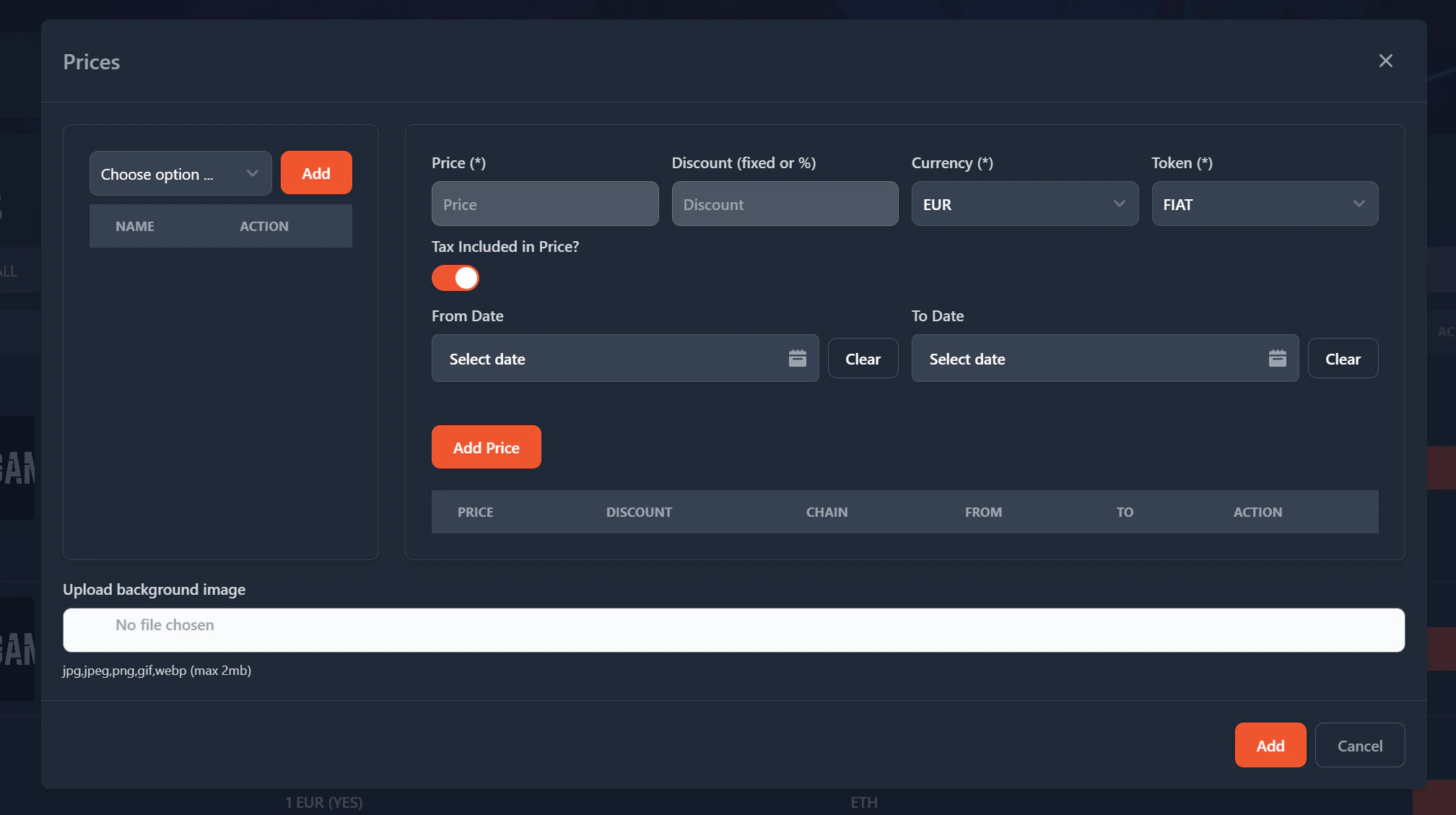
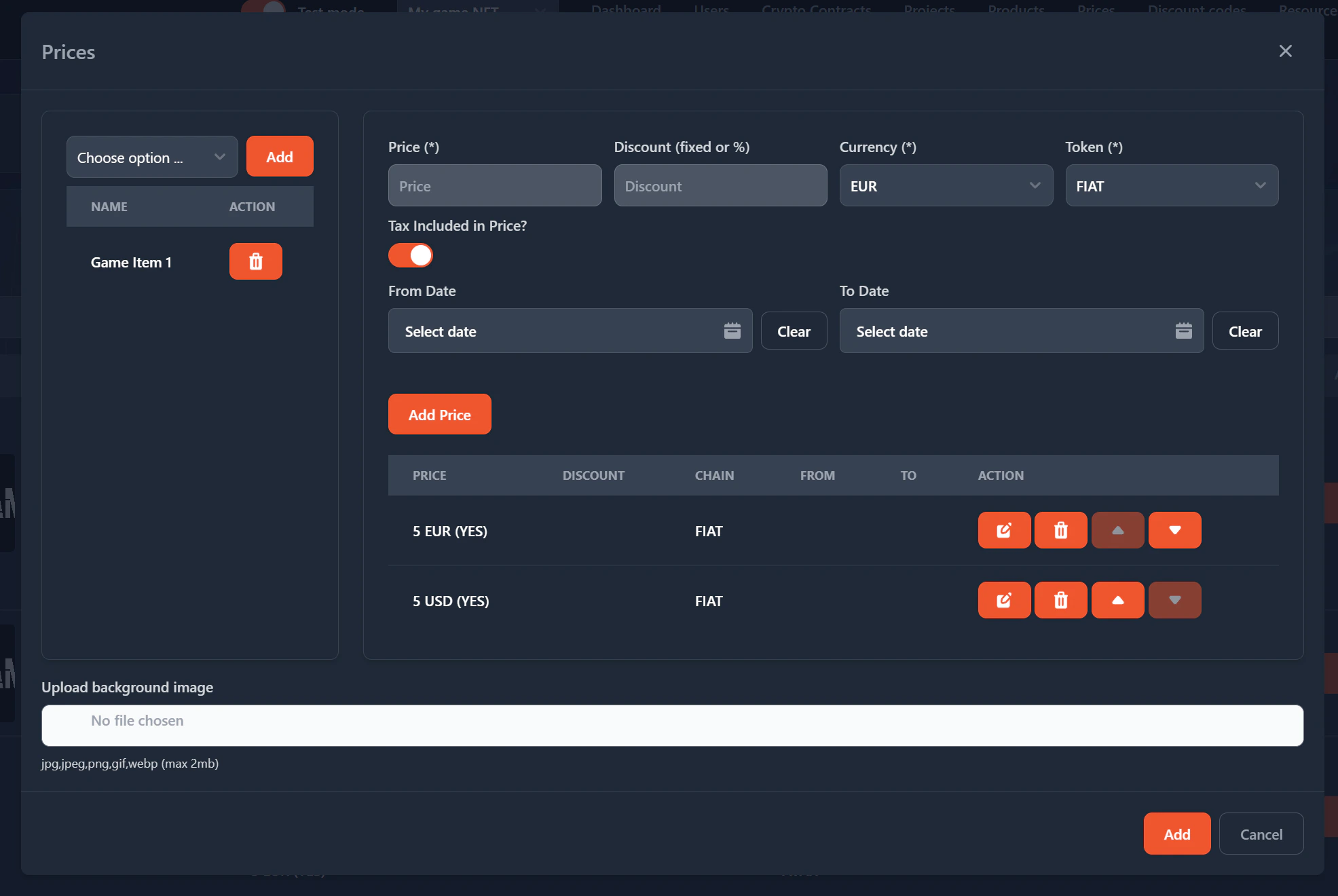
- Selection of product(s): A price can be given to one or multiple products. You can group these products into one single price.
- Price: The price you want to give to the product.
- Discount (Fixed or %): The discount you want to give. It can be a fixed value or a %. It will be deducted from the Price.
- Currency: Will be in USD or EUR. The system will pick which currency will be shown to the customer based on where they are buying (based on IP)
- Token: Default on FIAT (if product is ingame item). This means that it will be payments with Credit Card. If crypto is required, you can choose one of the tokens. The system will calculate live, based on the USD or EUR what the token price is.
- Tax included in Price?: This checkbox will determine if the customer will see the tax or that its calculated inside the price you filled in.
- From Date and To Date: Determines the price (and discount) that will be used. If these dates are empty, then the price will be always visible.
- Upload background image: This gives you the opportunity to create your custom background image when the user goes to the payment page. If none is given, the default Payingame background will be used.